Voice Studio
Every call goes through the same steps: hear → understand → look it up → think → speak. The Studio tab shows those steps as blocks you can rearrange.
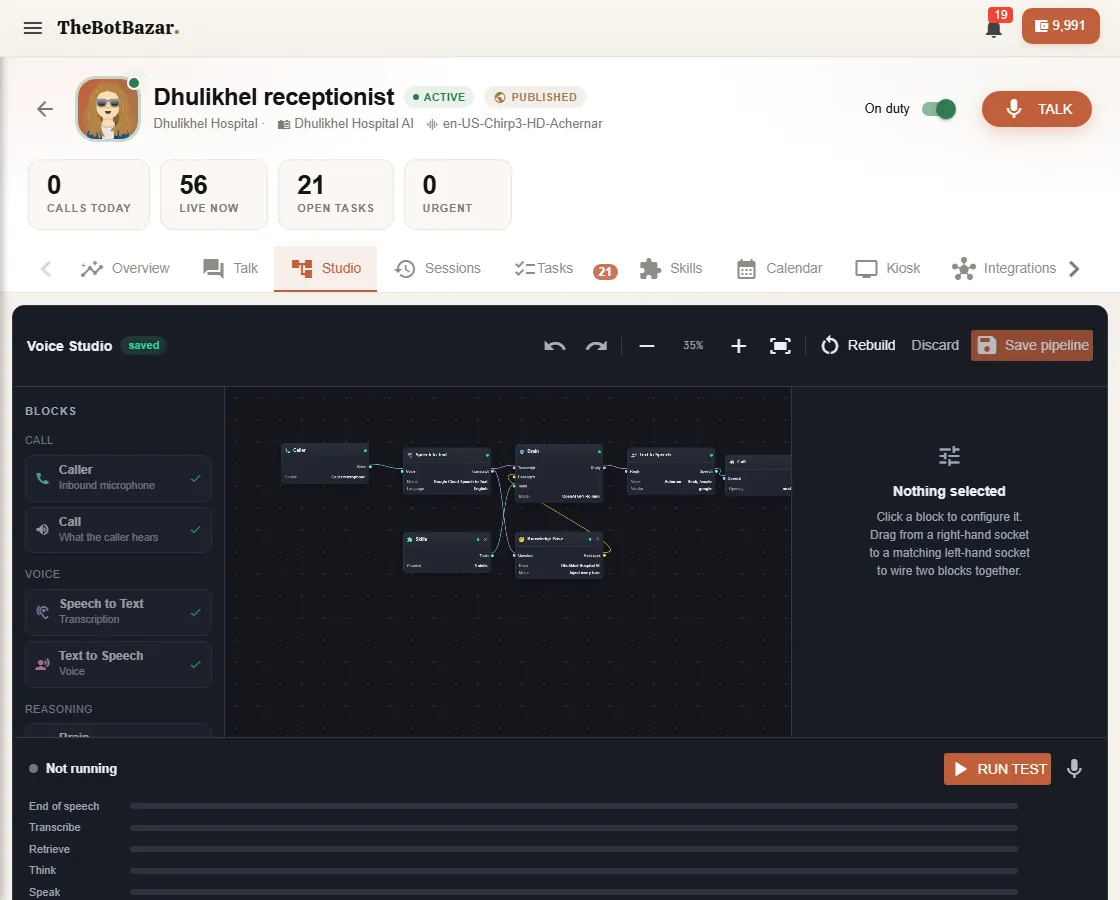
The blocks
| Block | What it does | You choose | |---|---|---| | Caller | The caller's microphone | — | | Speech to Text | Turns speech into words | Provider and model (e.g. Google, Deepgram, Sarvam for Nepali) | | Knowledge Base | Finds the answer in your bot's knowledge | Which bot, how it searches | | Brain | Thinks and writes the reply | AI provider and model | | Skills | Actions it may take | Which skills are on | | Text to Speech | Turns the reply into a voice | Provider and voice | | Call | What the caller hears | — |
Edit safely
- Drag from a block's right-hand socket to a matching left-hand socket to connect two blocks. - Click a block to change its settings in the right-hand panel. - Problems are flagged on the block itself as you edit. A red error (for example, a Nepali receptionist with an English-only voice) blocks saving; a yellow warning doesn't. - Save pipeline applies your changes. Discard throws them away, and Rebuild redraws the canvas from the current settings.
Test it
Press Run test and speak. Each stage lights up as it runs, with how many milliseconds it took — so you can see exactly where a slow answer comes from.
[!TIP] The Studio and the Settings tab edit the same thing. Change the voice in either one and the other shows it too.